

Create a custom tag signal
To create a custom tag signal:- Navigate to wandb.ai and select your project.
- In the Weave project sidebar, click Agents.
- In the tab bar, click Signals.
- On the Signals tab, click + Create your first signal.
- In the dialog, click Custom Signal.
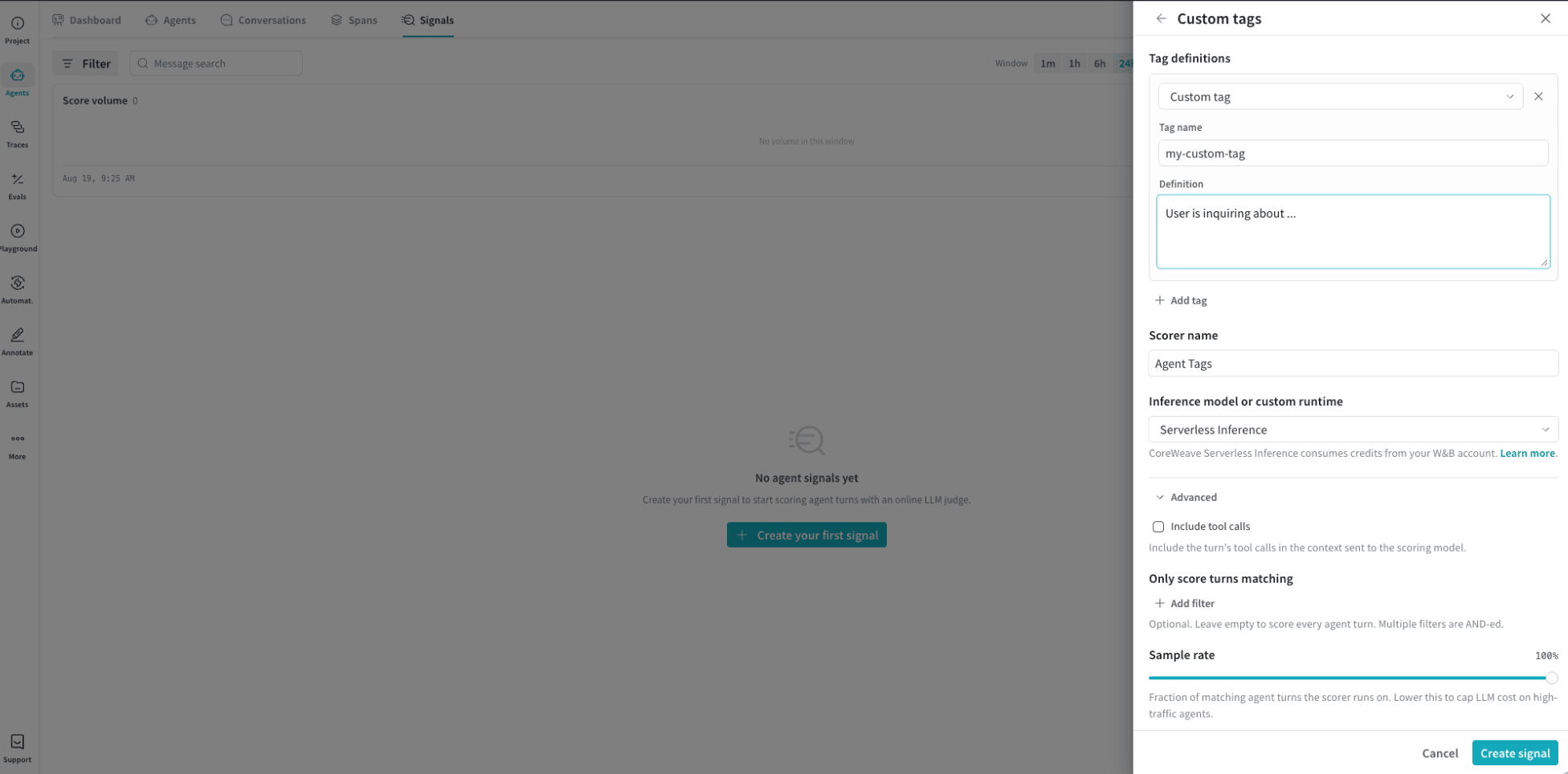
- In the Custom tags drawer, configure the following fields:
- Tag name: The label that appears in the Agents view for the behavior you want to monitor.
- Definition: Describe the behavior the signal should detect.
- (Optional) + Add tag: Click to define another tag on the same signal.
- Scorer name: The display name for this signal.
- Inference model or custom runtime: The model used to score matching turns. Serverless Inference is the default. CoreWeave Serverless Inference consumes credits from your W&B account.
- (Optional) Include tool calls: Expand Advanced, then include the turn’s tool calls in the context sent to the scoring model.
- (Optional) Only score turns matching: Expand Advanced, then add filters to restrict which turns the signal scores. To score every agent turn, leave this field empty.
- (Optional) Sample rate: Expand Advanced, then set the fraction of matching agent turns the signal scores. To reduce cost on high-traffic agents, we recommend lowering the sample rate.
- In the Custom tags drawer, click Create signal.